University College Dublin (UCD) crestOur School Through Time:Bringing Local School History to Life Through Augmented Reality.

LET’S GET STARTED

Your class. Their stories.

Set up a class, help pupils make something small, then review and share their discoveries.

You do not need to be a tech expert.

One photo and a few sentences are enough for your first experience.

Collect → Build → Teacher review → Share

Your first four steps

One small step at a time. Tap a number or use Next step.

Step 1 of 4

Open your school studio

  1. Use Login and the account details given to you by your school administrator.
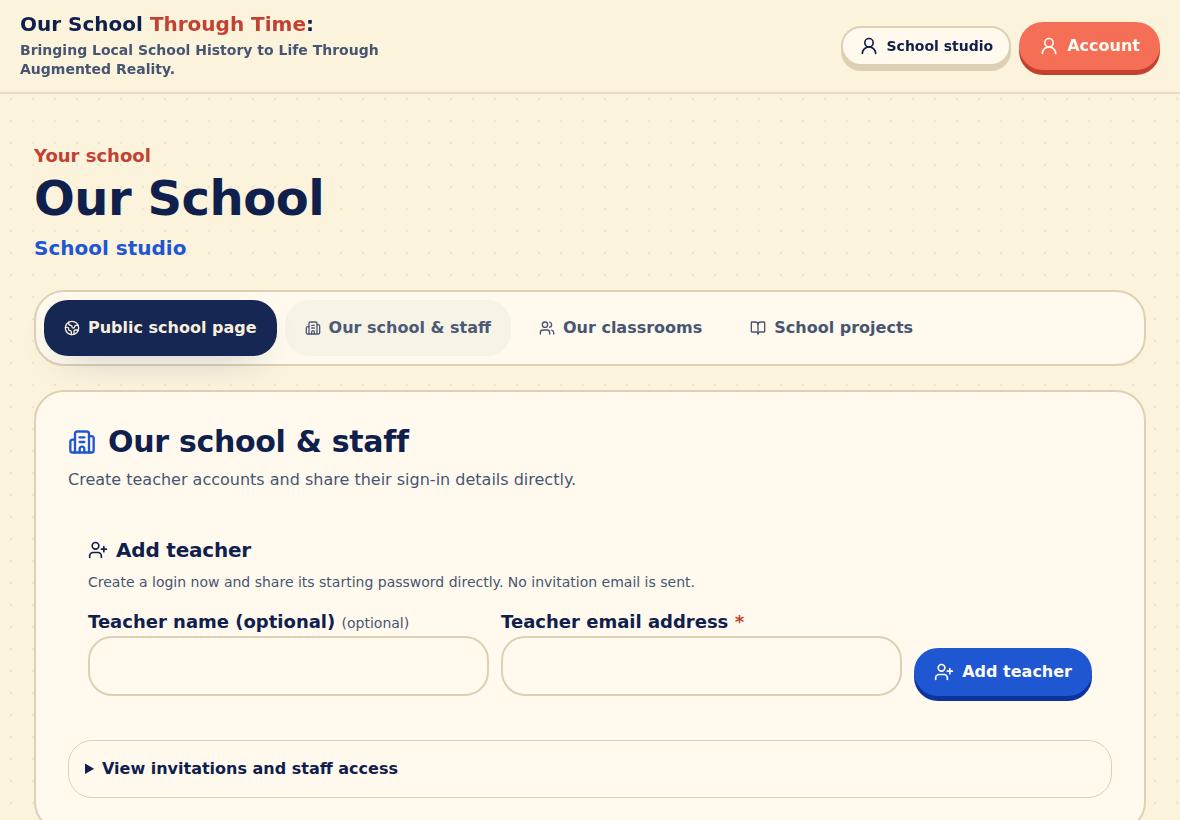
  2. Open School studio. Your school administrator can use Our school & staff → Add teacher to create more accounts.
  3. Share each teacher’s starting password privately. Teachers can use Forgot password to set their own.

Good to know: No account yet? Ask your school administrator. Pupils use a class code instead.

Our School Through Time · example screen
Our school & staff: a school administrator can add teachers manually.
Our school & staff: a school administrator can add teachers manually. Tap the image to enlarge. Screens use example data.
AI is a helper, not a history book. For primary pupils, run ChatGPT and other AI tools yourself using school-approved accounts. Under-13 ChatGPT interactions must be conducted by an adult. Check other tools’ age rules, costs and school permissions first. Keep private details, pupils’ faces and personal records out of AI uploads. Label invented scenes “Imagined reconstruction”.

MAKE A LITTLE HISTORY

What will you create?

Start small. Open an idea to see how to make it. The bigger adventures are best made with your teacher.

A lovely first projectA photo with a storyFind an old school photo. Take a new photo from the same spot. What has changed?

Try: Our classroom, then and now

  1. Ask your teacher which archive photos you may use. Keep a copy of the original.
  2. Add both photos in My content. Choose Then & now photo and pick the old and new images.
  3. For Photo hotspots, choose one photo, tap a detail and add a short label and explanation.

Example points: the blackboard, wooden desks and stove. Say where the photo came from.

Tell it in your own wordsA memory you can hearRecord a short memory or write a story visitors can read and hear.

Try: When the school bell rang

  1. Ask permission before recording an interview. Prepare three friendly questions.
  2. Upload your recording as Audio, or add a written Story.
  3. Choose Audio story. Select the recording or written story and add an introduction.

Try a 30–60 second recording. Also add the words as a written story so everyone can follow.

Become a history detectiveA trail through the yearsPut important events in order, from the school’s opening to today.

Try: Four moments in our school’s story

  1. Find three or four dates in school records, photographs or interviews.
  2. Choose Historical timeline. Add a date, heading and short explanation for each event.
  3. Check the dates with your teacher. Use “about” when you only know an approximate date.

Try: school opens → new classroom → first computers → our class today.

Teacher teamworkA 360° time portalImagine standing inside your school long ago. Look left, right, up and down.

Try: our classroom in 1925.

  1. Find an old classroom or school photo. Ask what the desks, walls and windows were really like.
  2. Ask your teacher to upload the permitted reference to ChatGPT and use the prompt below. AI fills in missing areas: this is an imagined reconstruction.
  3. Ask for a full 360° panorama in a 2:1 shape. A normal photo stretched wider is not a 360° scene. Check the join, ceiling and floor.
  4. With your teacher, use an image editor’s Resize option. Keep the shape locked at 2:1 and aim for 4096 × 2048 pixels. Save as JPEG under 15 MB. Enlarging adds pixels, but cannot recover missing detail or fix a broken panorama.
  5. Your teacher uploads the picture as 360° in the school project. A 6000 × 3000 source is accepted there and resized for the viewer; the source limit is 8192 × 4096 and 15 MB.
  6. Your teacher selects 360° look-through portal, chooses the panorama and checks its starting view. After review and publication, scan the station card and tap Enter portal to look around.

TRY THIS WITH YOUR TEACHER

Using this old school photograph as a reference, create an imagined reconstruction of the classroom in [year]. Make a full 360° equirectangular panorama, twice as wide as it is tall (2:1). Place the viewer in the middle at eye level. Show the walls, ceiling and floor, with matching left and right edges. Keep the desks, windows and materials consistent with the reference and our research. No text, labels or modern objects. Do not invent this as historical evidence.

Students can collect 360° pictures, but the portal builder is currently in the teacher’s school studio. Do not walk towards a screen or printed sheet to enter.

Teacher teamworkAn object you can turn aroundTurn a clear picture of an old object into a 3D model with Meshy.

Try: a school bell, ink bottle or wooden desk.

  1. Photograph one whole object against a plain background, or make a reference picture with your teacher.
  2. Your teacher opens Meshy → Image to 3D, uploads the picture and generates a model. Check the back and sides: AI has to guess them.
  3. Download the model as GLB (.glb), with its textures included, under 20 MB. This platform does not upload .obj files. If you already have OBJ, ask your teacher to convert it with its materials and textures to GLB.
  4. In My content choose 3D model. Add the file, then select 3D model in Build experience and choose your upload.
  5. Preview, turn and zoom the model, then send it to your teacher. After approval, your teacher can edit the school experience and add interactive points with labels, facts and optional audio.

TRY THIS WITH YOUR TEACHER

Create a clear reference picture of one old brass school handbell. Show the whole object, centred, on a plain background. Use a wooden handle and realistic materials. No writing, extra objects or people. We will use this picture to make a 3D model.

Point ideas: “Wooden handle — a comfortable grip”, “Brass body — makes the ringing sound”, “Clapper — strikes the inside”. Keep models simple for phones; the upload checks allow up to 300,000 triangles.

Teacher teamworkMake the past come aliveMake a short historical film or a friendly storyteller for your AR card.

Try: a 20-second welcome from an imagined school caretaker.

  1. Write a short script using facts you checked. Make clear which parts are imagined.
  2. Record a model scene or a teacher-led role-play. Or ask your teacher to use a school-approved image-to-video or talking-avatar tool with an illustrated character.
  3. Export a short MP4, ideally 1080p with H.264 video and AAC sound, under 20 MB. Add captions in the video editor.
  4. Choose Video in My content, upload it, then choose Video story in Build experience. Preview and send to your teacher.
  5. After publication, visitors can watch normally or play the video on the AR target. Tap Play and turn on sound when wanted.

TRY THIS WITH YOUR TEACHER

Hello! I am an imagined school storyteller from [year]. This is our classroom. We used [object] for [purpose]. One thing that is different today is [fact]. What can you spot?

Try HeyGen Photo Avatars with your teacher.

Upload a permitted character image, paste your short script, choose a voice and generate a speaking video. Preview it, download the MP4, then add it as Video in My content. Use an imagined character; ask permission before making a real person appear to speak.

HeyGen offers a limited free plan; avatar features and video allowances vary. Your teacher should check the current plan before starting.

What “AR avatar” means here: a character video plays on a flat panel over the target. It is not a live chatbot or a free-standing hologram. An animated GLB character is another option with teacher help; it needs animation inside the file. The site does not create lip-sync or voices for models.

From a page to a little time machine

1. Scan the QR

Your teacher publishes the experience and prints its QR station card. Scan the QR to open the right story.

2. Point at the dotted square

Tap the camera/AR button and allow the camera. The dotted square is what the camera tracks. Keep it in view.

3. Explore

Tap points, turn a model or play the video. For a portal, tap Enter portal for the full-screen 360° view. Stay still and use your finger to look around.

No camera? No problem. Open the normal experience page to read, listen, watch and explore. Keep a clear space around you when using AR.

YOUR FIRST LESSON

One object. One story. One lesson.

Begin with a school bell or an old classroom photograph. Save AI and 3D experiments for a follow-up lesson.

5 min

Look closely

What do we notice? What do we wonder?

10 min

Find the facts

Check a source. Choose three facts.

20 min

Make a story

One photo + short writing or narration.

10 min

Share and reflect

Preview, send for review and say what we learned.

Before class: create the classroom and project, test the join code, prepare permitted source material and try one station card. Pupils can work as researcher, writer, maker and checker.

CHOOSE YOUR TOOL

What can I use?

A laptop is easiest for building. A phone or tablet with a rear camera is easiest for trying the AR station card. Start with devices your school already has.

Best for making

Laptop or Chromebook

Use an up-to-date Chrome, Edge or Safari browser. Build stories, upload files, watch videos and drag to look around 360° scenes or turn models. A mouse makes interactive points easier.

You can explore without a camera. A front webcam is awkward for station-card AR.

Great for the station card

iPhone or iPad

Open the link in Safari. Allow the camera when you start AR. Keep the dotted square in view, then tap Enter portal for the 360° scene.

Use the card or 360° viewer as the normal route. Room placement depends on browser support and may be unavailable.

Card AR + supported room placement

Android phone or tablet

Use up-to-date Chrome with camera permission. Card AR needs a rear camera and browser graphics support. Place in room additionally needs a compatible ARCore/WebXR device.

Room placement is offered when supported. If it cannot start, use the dotted card or Enter portal instead.

No headset or app installation is needed for the normal viewer. This site’s room controls are designed for handheld screens, not a headset experience. Compatibility varies: test your school’s devices before the lesson. iPhone video playback still needs checking on your actual device.

Something not working?
  • Camera will not start: open the link in Safari or Chrome rather than inside another app. Allow camera permission and close other camera tabs.
  • The AR picture is shaky: keep the whole dotted square visible. Use good light, a flat card and slow movements. Avoid glare.
  • The portal stays on the sheet: that is the card view. Tap Enter portal to fill the screen and drag to look around.
  • No Place in room button: use the station card. Your browser may not support the extra room-tracking features.
  • Video is silent or will not play: tap Play, then the sound button. Try a short H.264 MP4. Use the normal video page if AR playback struggles.
  • Your draft is missing: rejoin the same class on the same device and browser. Ask your teacher before clearing browser data.
  • Uploads are slow: use school Wi-Fi, upload one file at a time and keep videos and models small. Ask a teacher if the school network blocks the page.

Ready to show your teacher?

Teacher reference: file sizes and useful links

Photos: JPEG, PNG or WebP, up to 10 MB. 360° images: JPEG, PNG or WebP, up to 15 MB; use a true 2:1 panorama. School portal uploads can resize sources up to 8192 × 4096 to 4096 × 2048. Models: self-contained GLB, up to 20 MB. Video: MP4 or WebM, up to 20 MB; 1080p H.264 MP4 is the first format to try for mixed devices. Audio: up to 20 MB. Written stories: 20–5,000 characters.

Students can keep up to 12 content items per experience. Drafts are tied to the class session and browser’s private work key; copying a class code to another device does not transfer a draft.

Guidance checked 19 October 2026. External AI tools are separate services; availability, plans and device support can change.